Write the questions in HDJLabs Studio and export a single file. Students run it, enter the password you announce, and the PC stays inside the exam until they submit. Results come back over the classroom network — no internet, no accounts, no server.
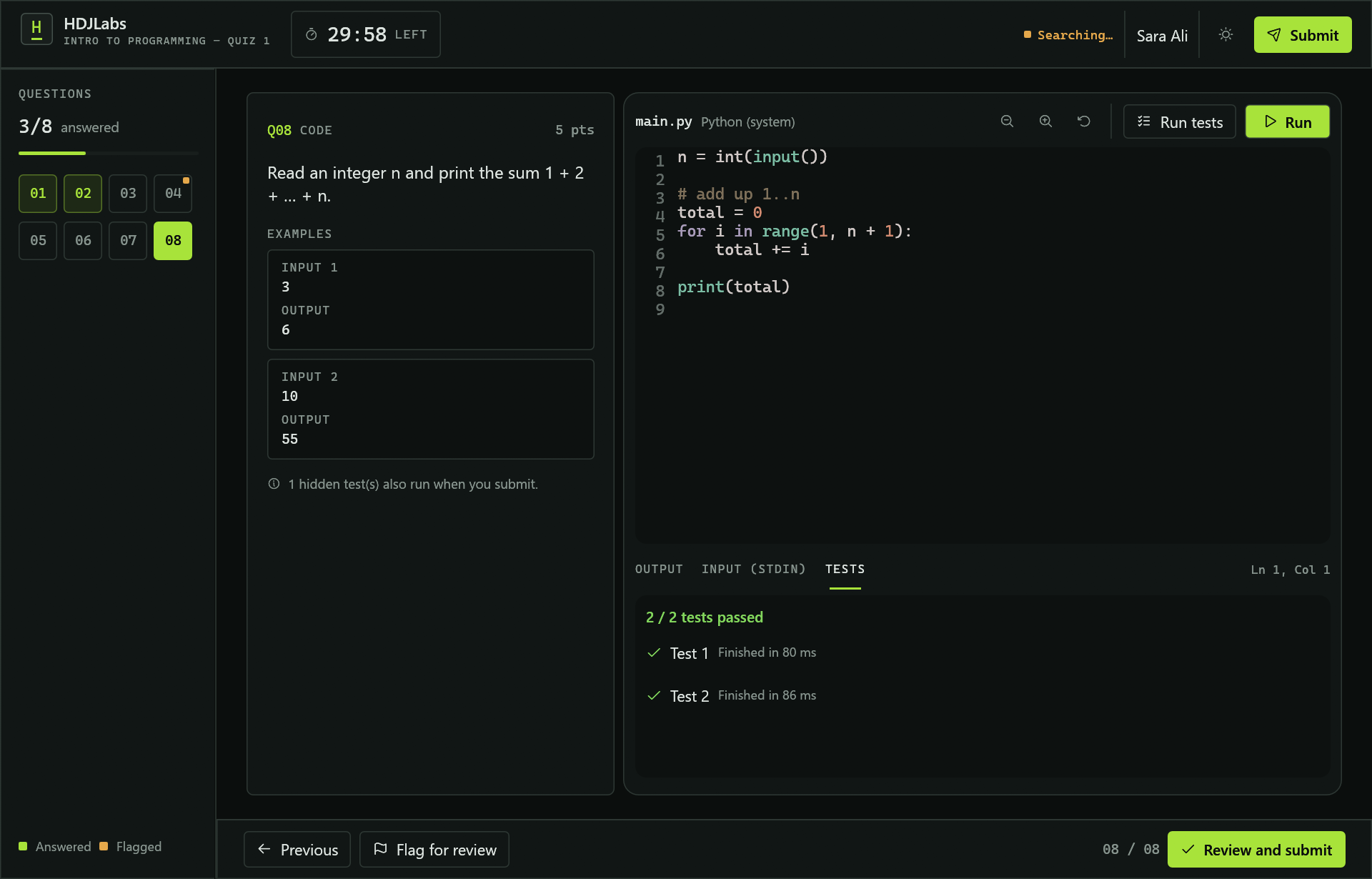
The exam runs on its own Windows desktop. No taskbar, Start menu, notifications or other windows exist there — nothing to switch to.
Win key, Alt+Tab, Alt+F4, Ctrl+Esc, Ctrl+Shift+Esc and Print Screen are swallowed, and so are keystrokes injected by macro tools.
Task Manager, lock, sign-out and the power menu are removed for the duration, then restored exactly as they were.
Three- and four-finger gestures and edge swipes are switched off.
Screenshots, recordings and screen shares capture a blank window. The exam refuses to start under Remote Desktop or while TeamViewer, AnyDesk and similar tools run.
Every setting is backed up first. If the power goes out, the next launch restores the PC, and answers resume from an encrypted autosave — with the restart reported to you.
Remove the exam file from every student PC from your Live screen, or have it delete itself after submission.
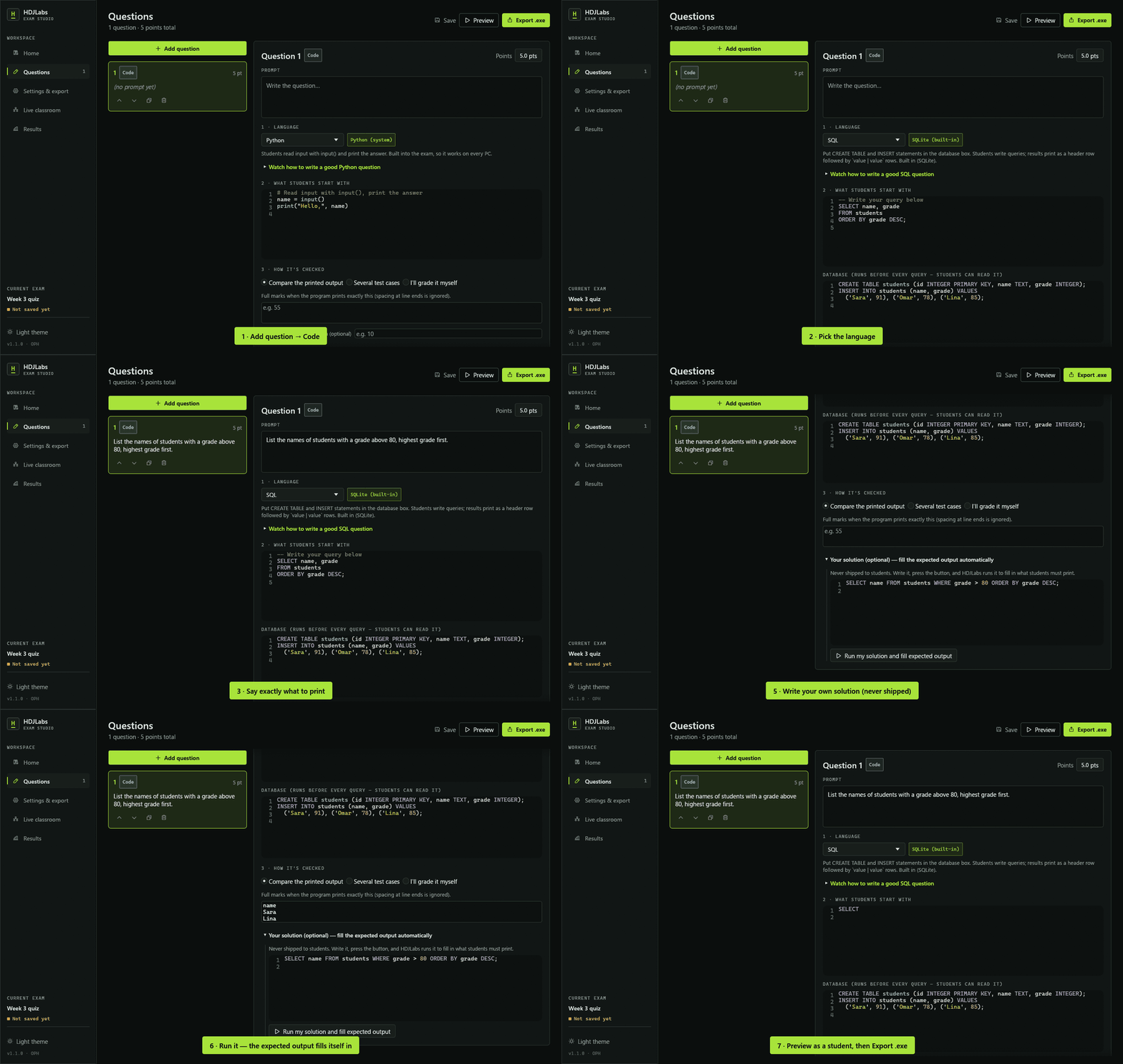
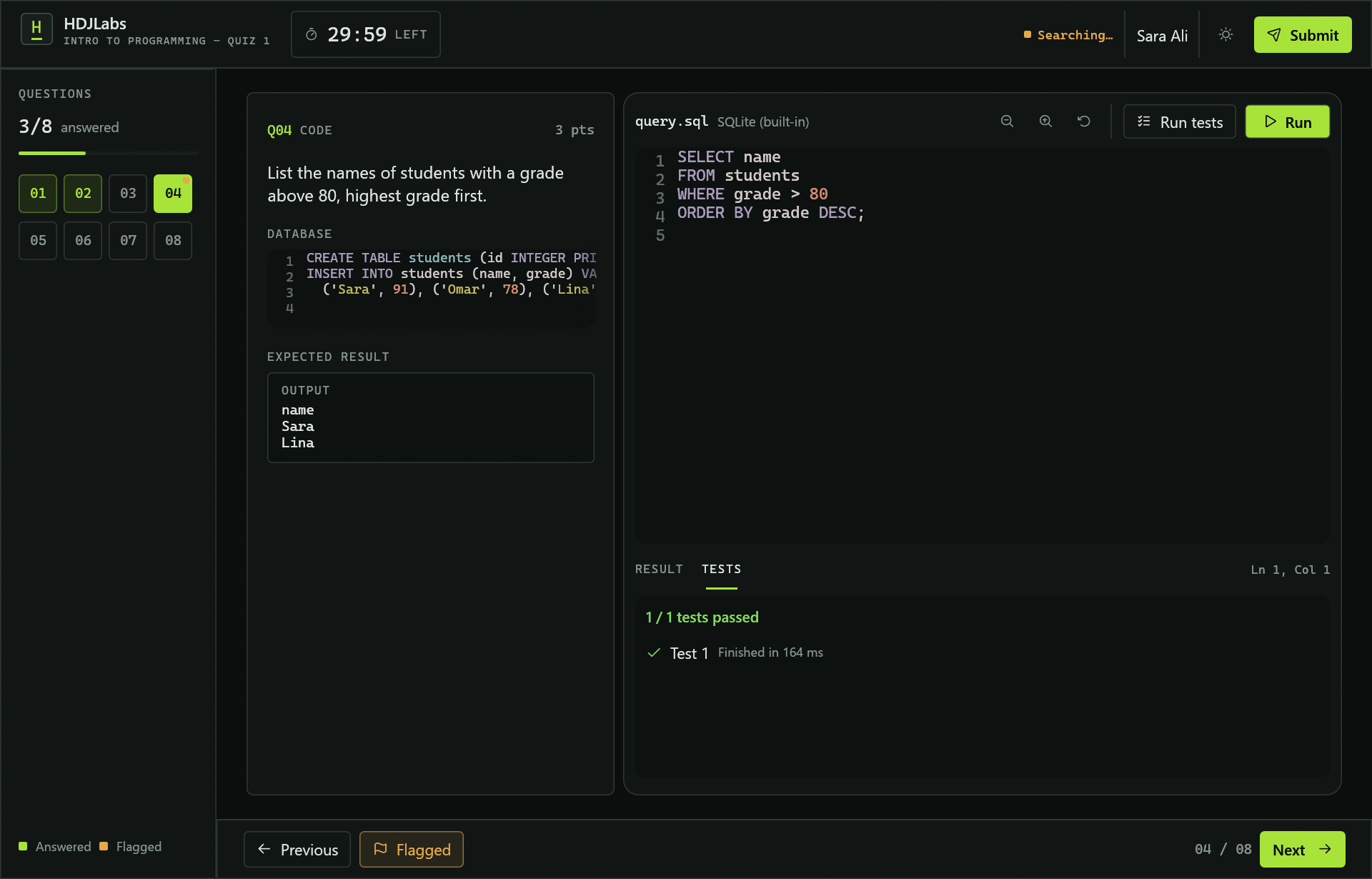
You write the tables and rows; students see them beside the question and write queries. SQLite is built in — nothing to install.
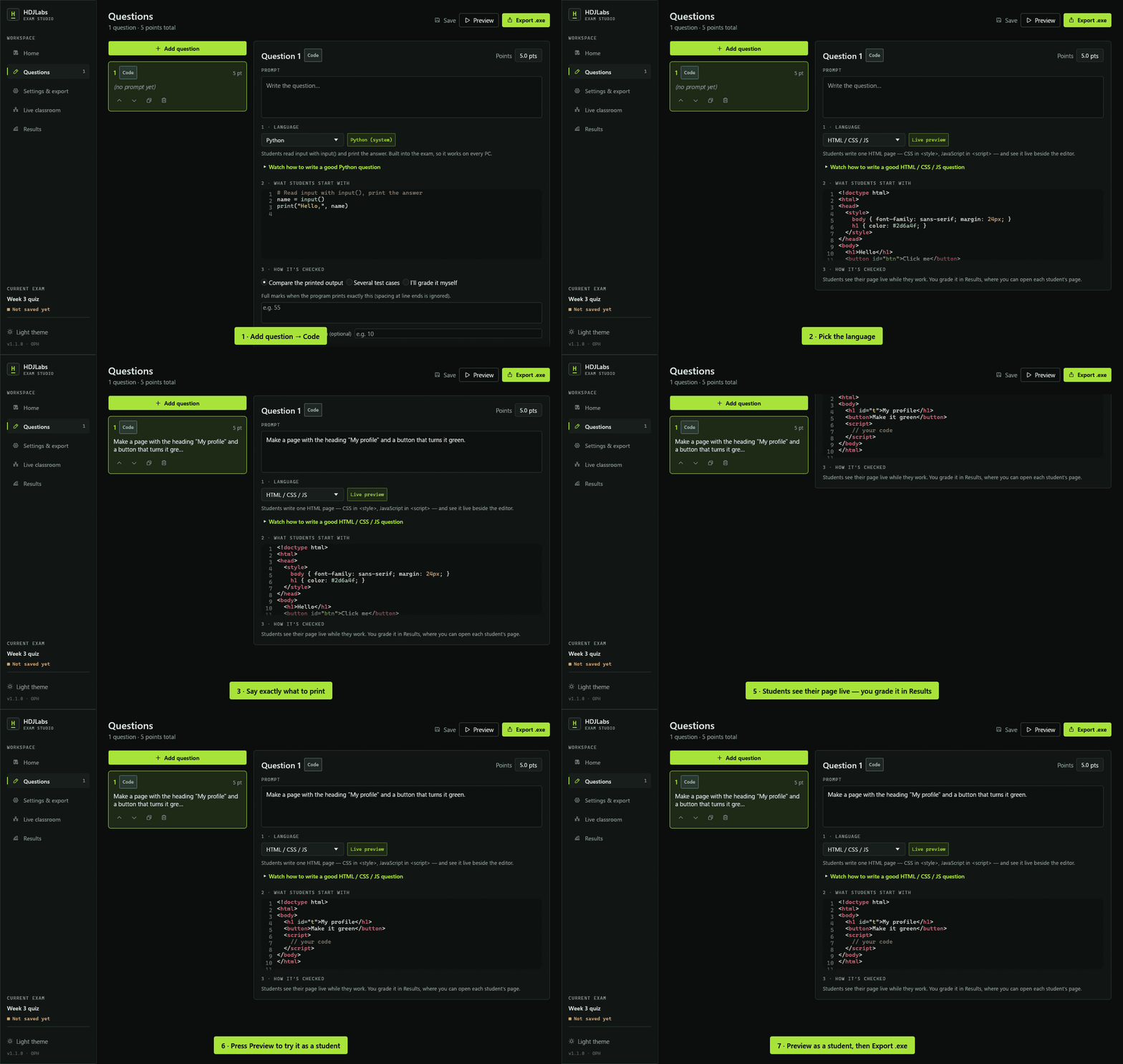
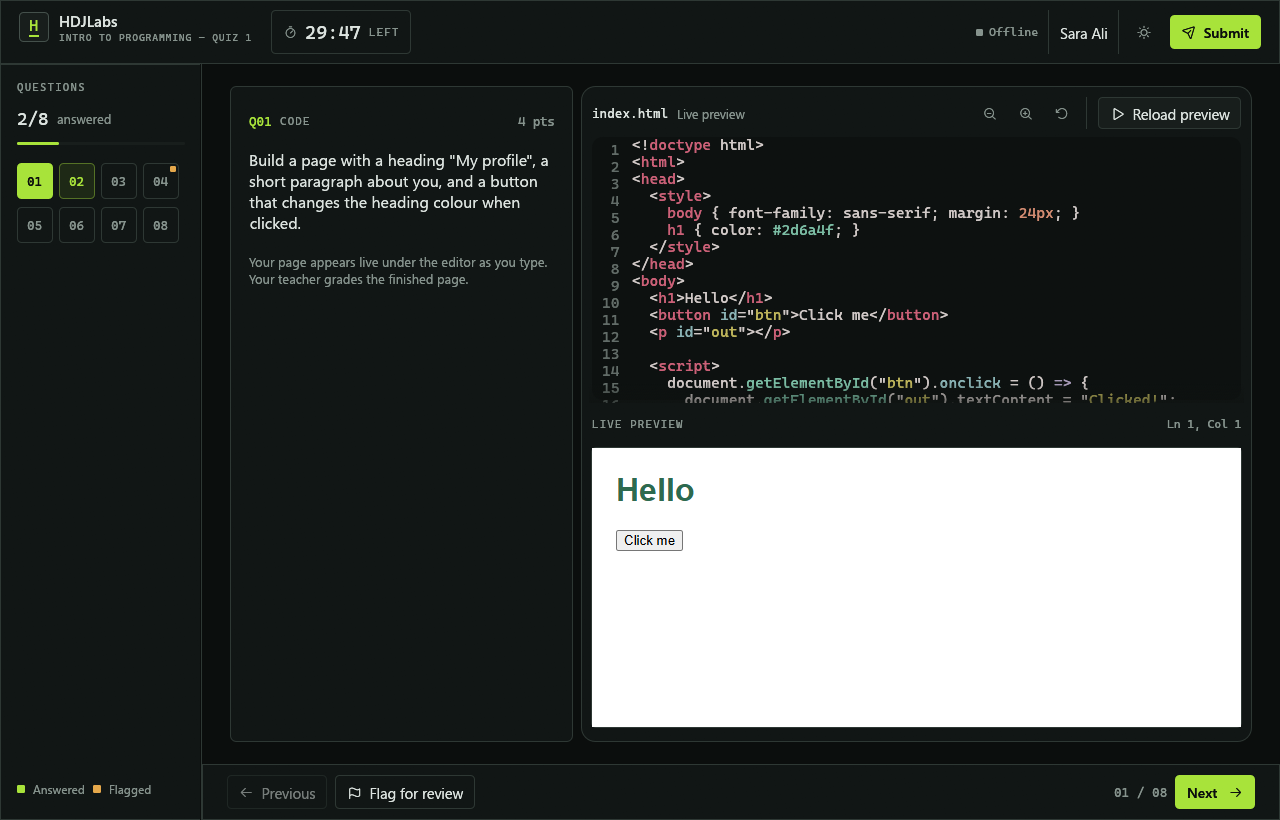
Students build a page and watch it render as they type. Navigation, pop-ups, printing and devtools are blocked inside the preview.
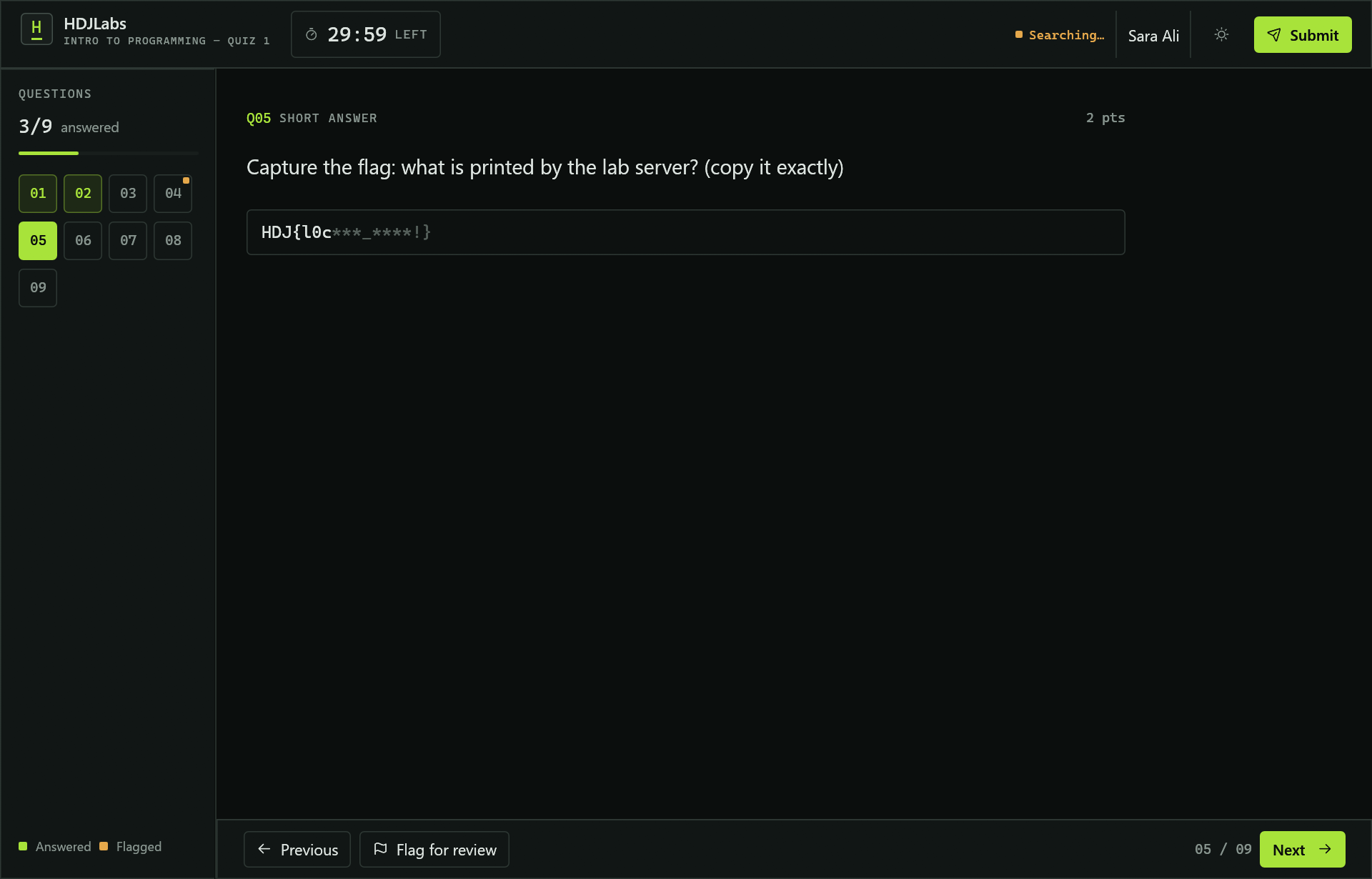
Optionally show the answer's shape. Letters become * and symbols like _ { } ! @ # stay visible; each character the student types fills one slot.
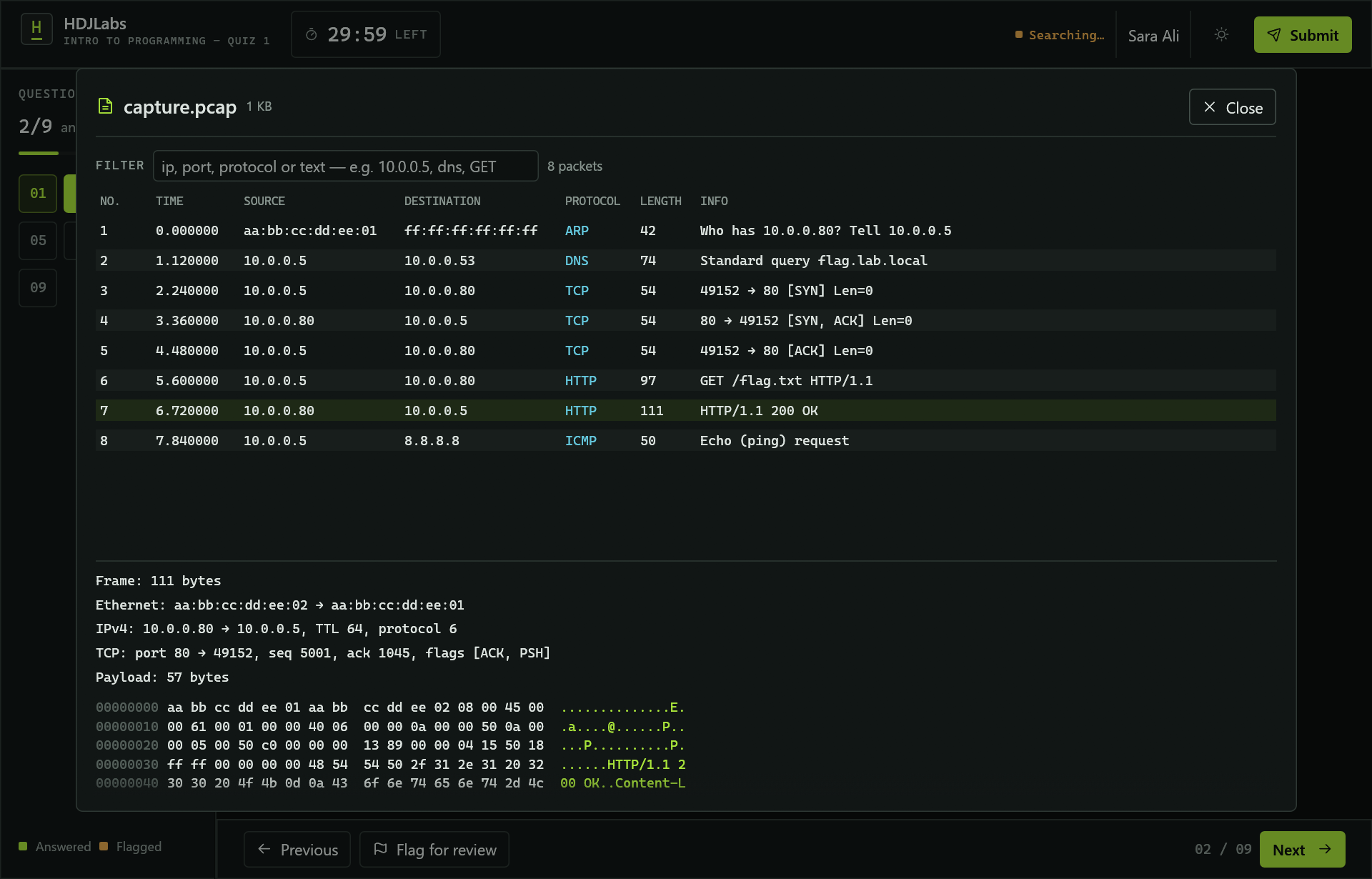
Attach images, packet captures, logs or code. Students open them inside the exam, even in lockdown: a Wireshark-style packet list with hex dump, images, text, and a hex view for anything else.
| Language | Runs with |
|---|---|
| Python | Built in. Uses the installed CPython if present. |
| JavaScript | Built in. Uses Node.js if present. |
| SQL | Built in (SQLite), with your database. |
| HTML / CSS / JS | Built-in live preview (Edge WebView2 on Windows 10/11). |
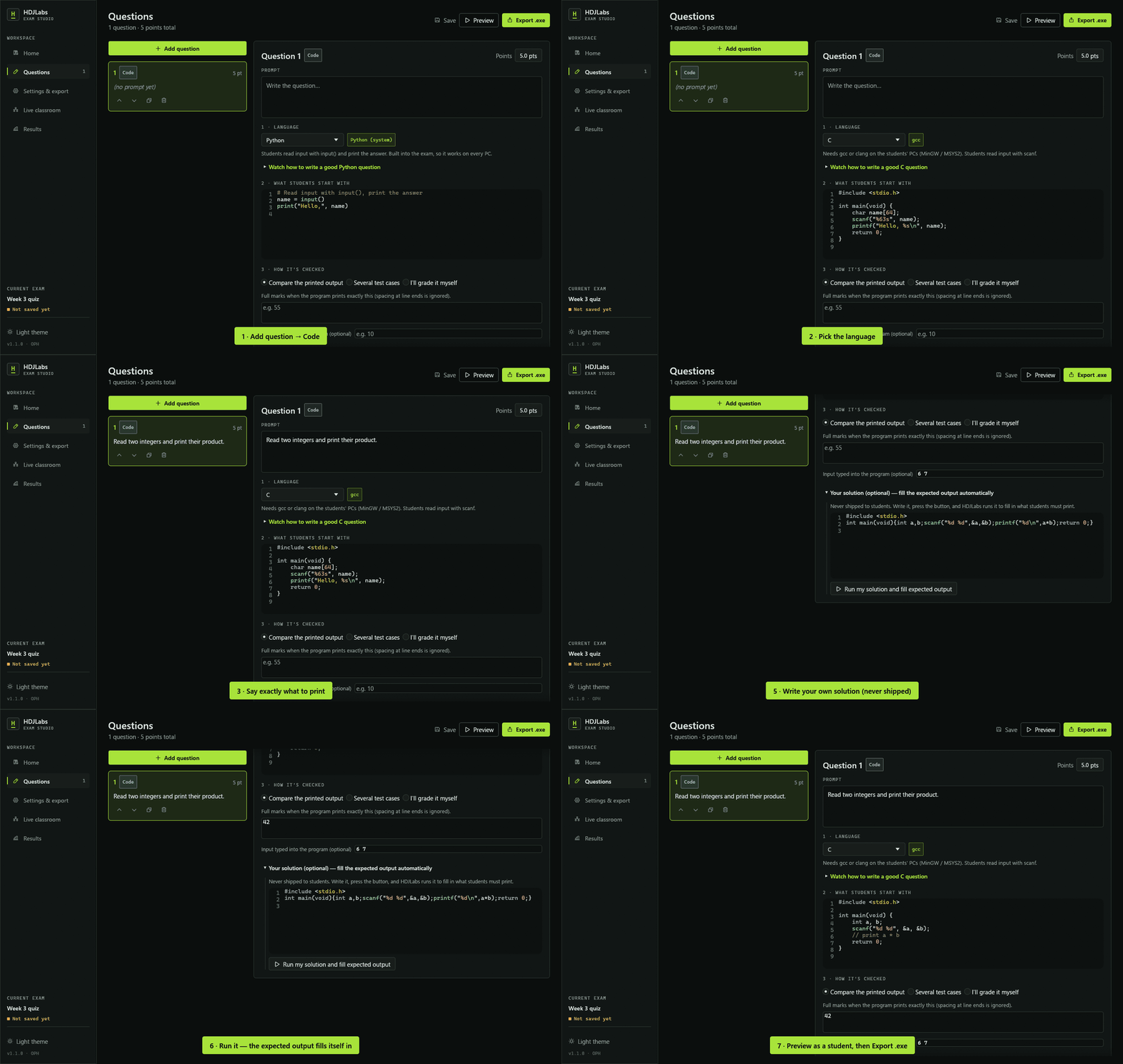
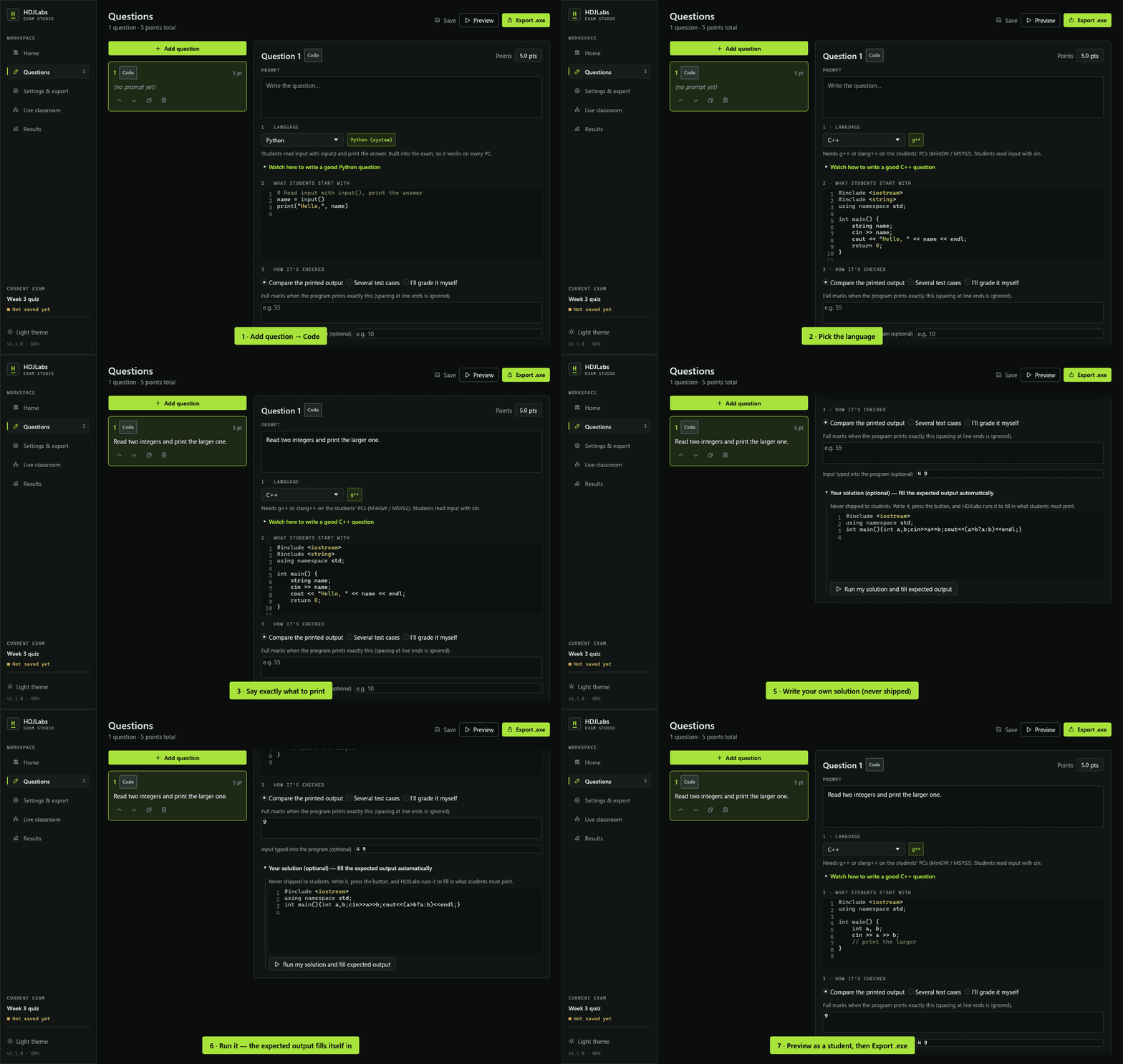
| C / C++ | gcc, g++ or clang (MinGW, MSYS2, LLVM) |
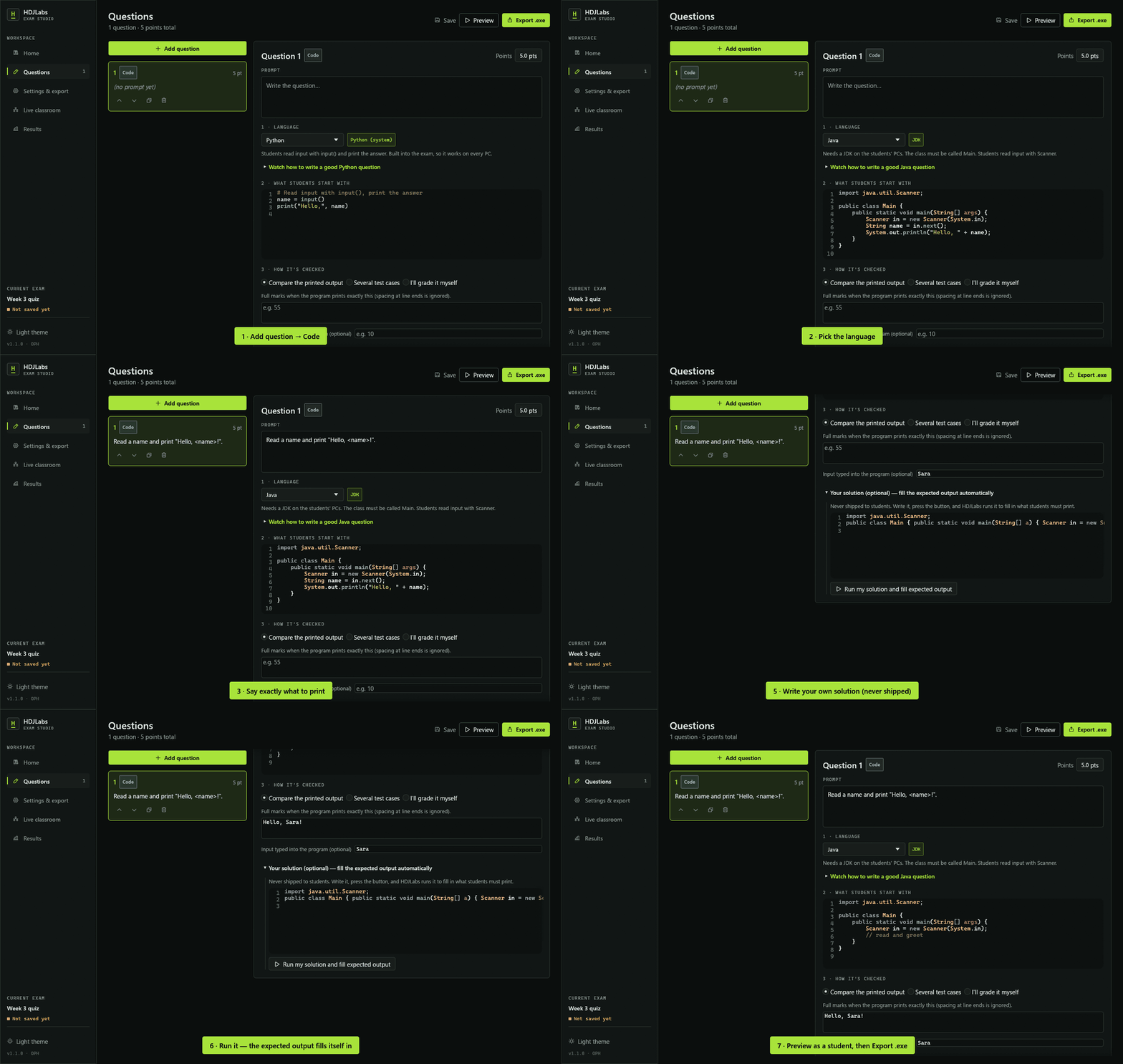
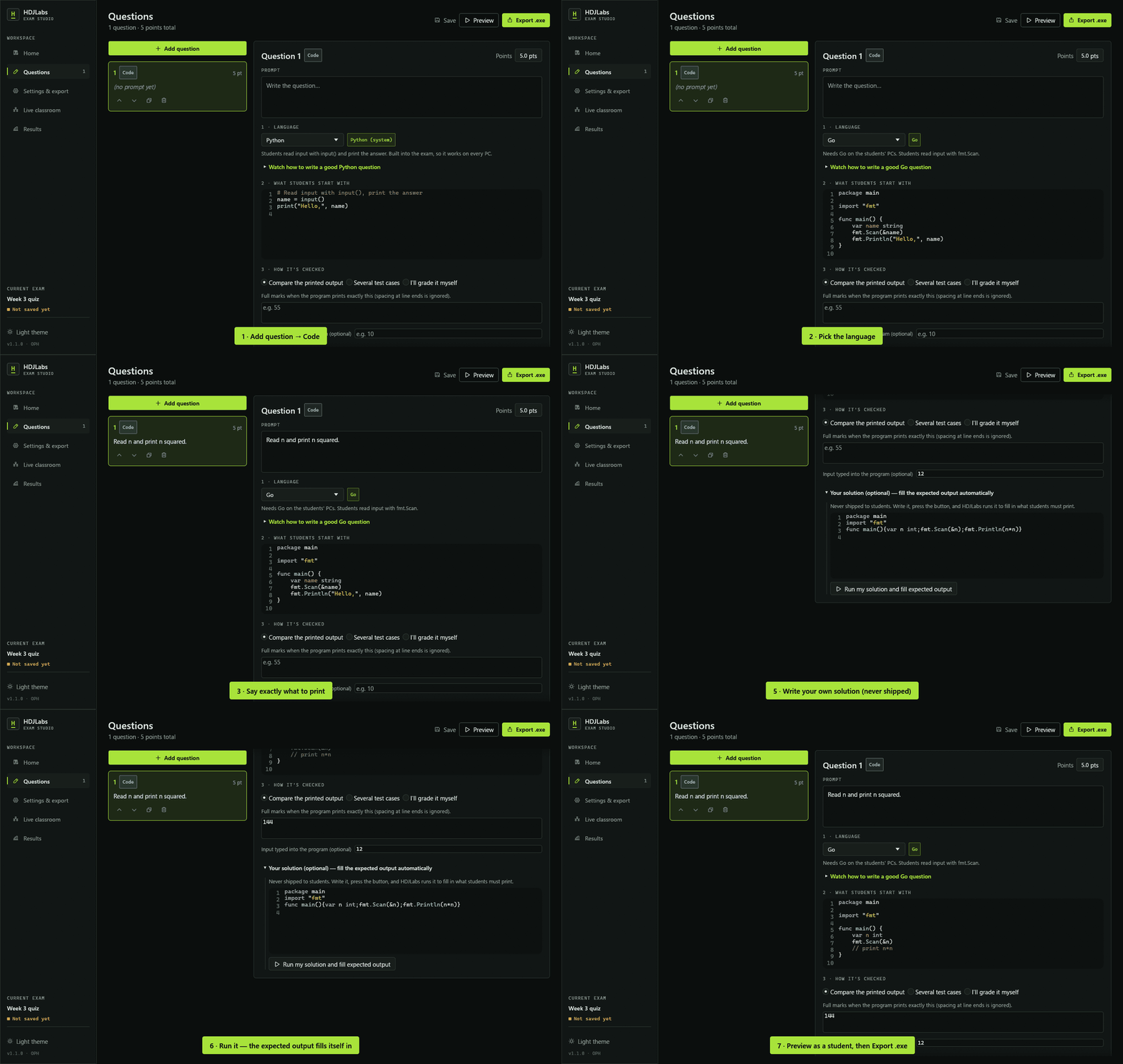
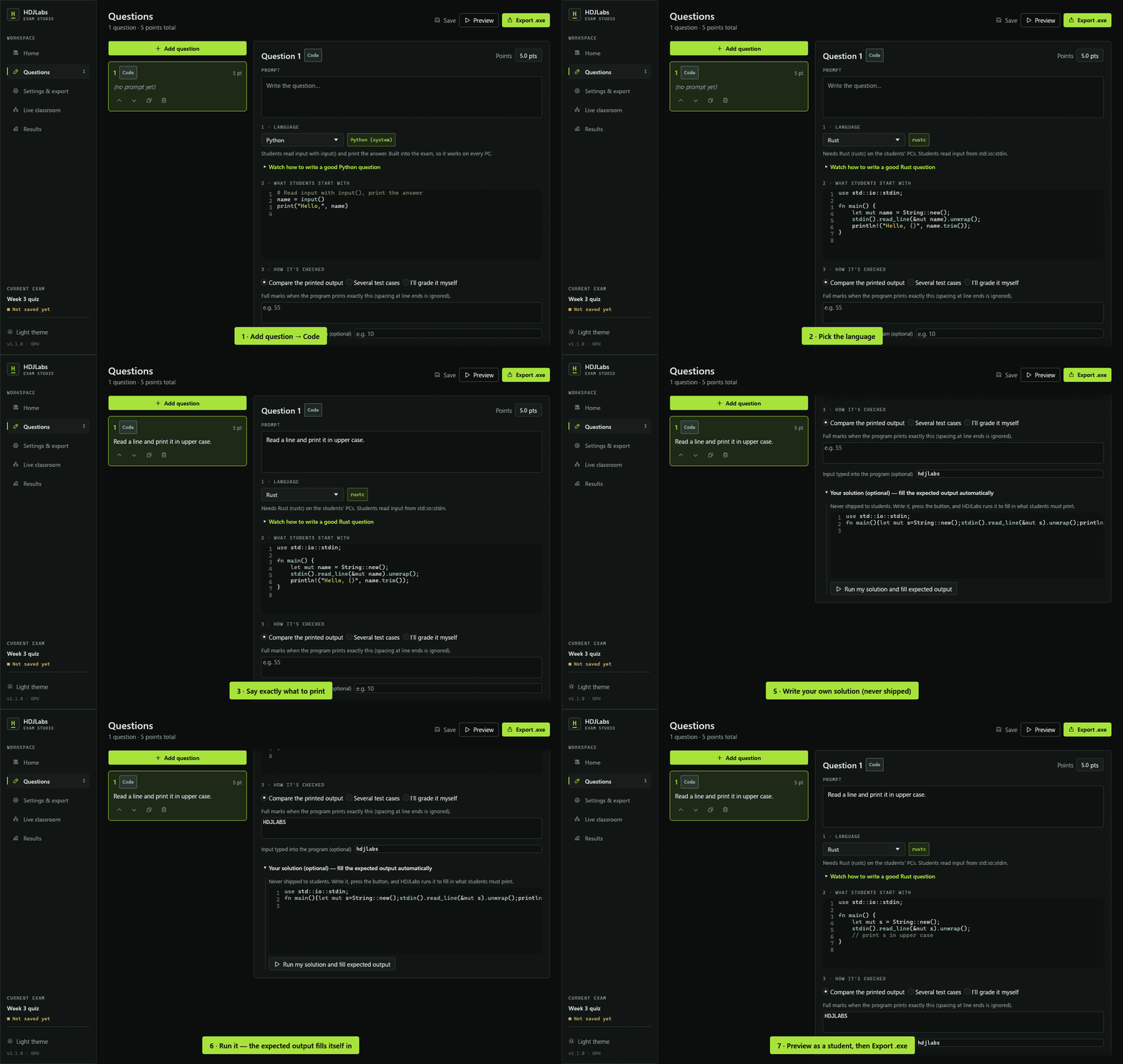
| Java · Go · Rust | A JDK, go, rustc |
No IP addresses to type and no setup on student PCs. HDJLabs finds the teacher on the same Wi-Fi, switch or hotspot and asks Windows for firewall permission once.
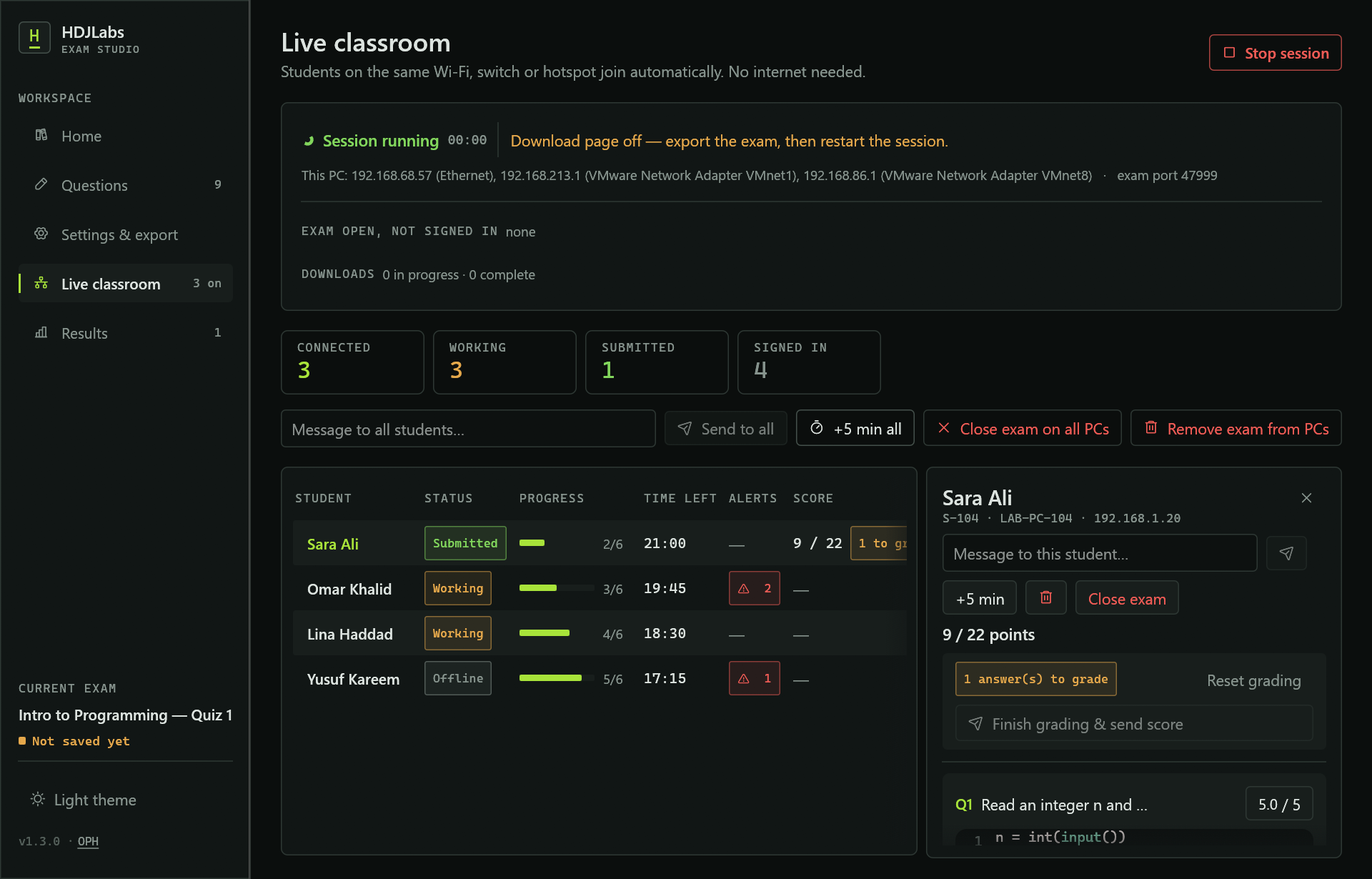
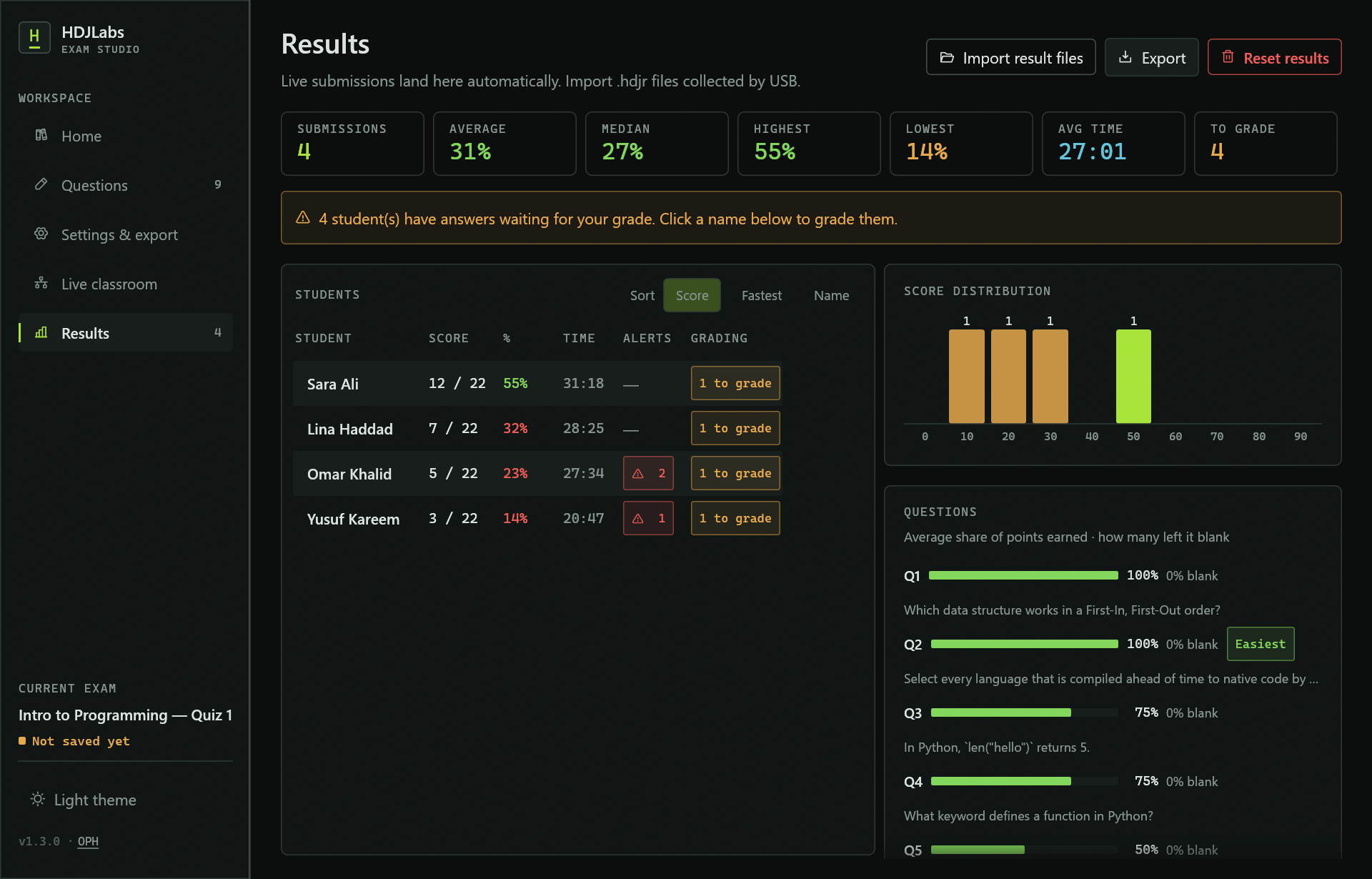
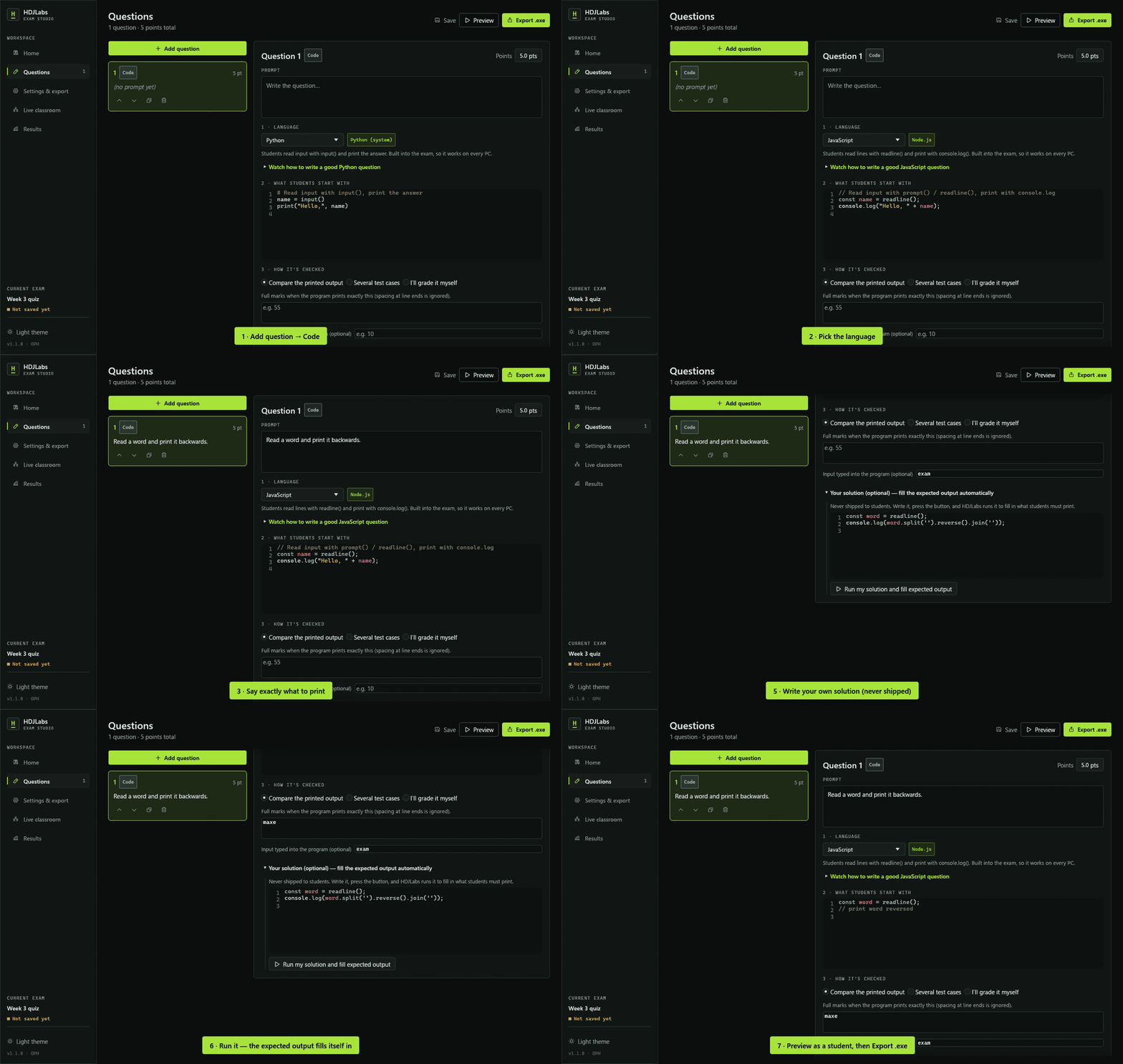
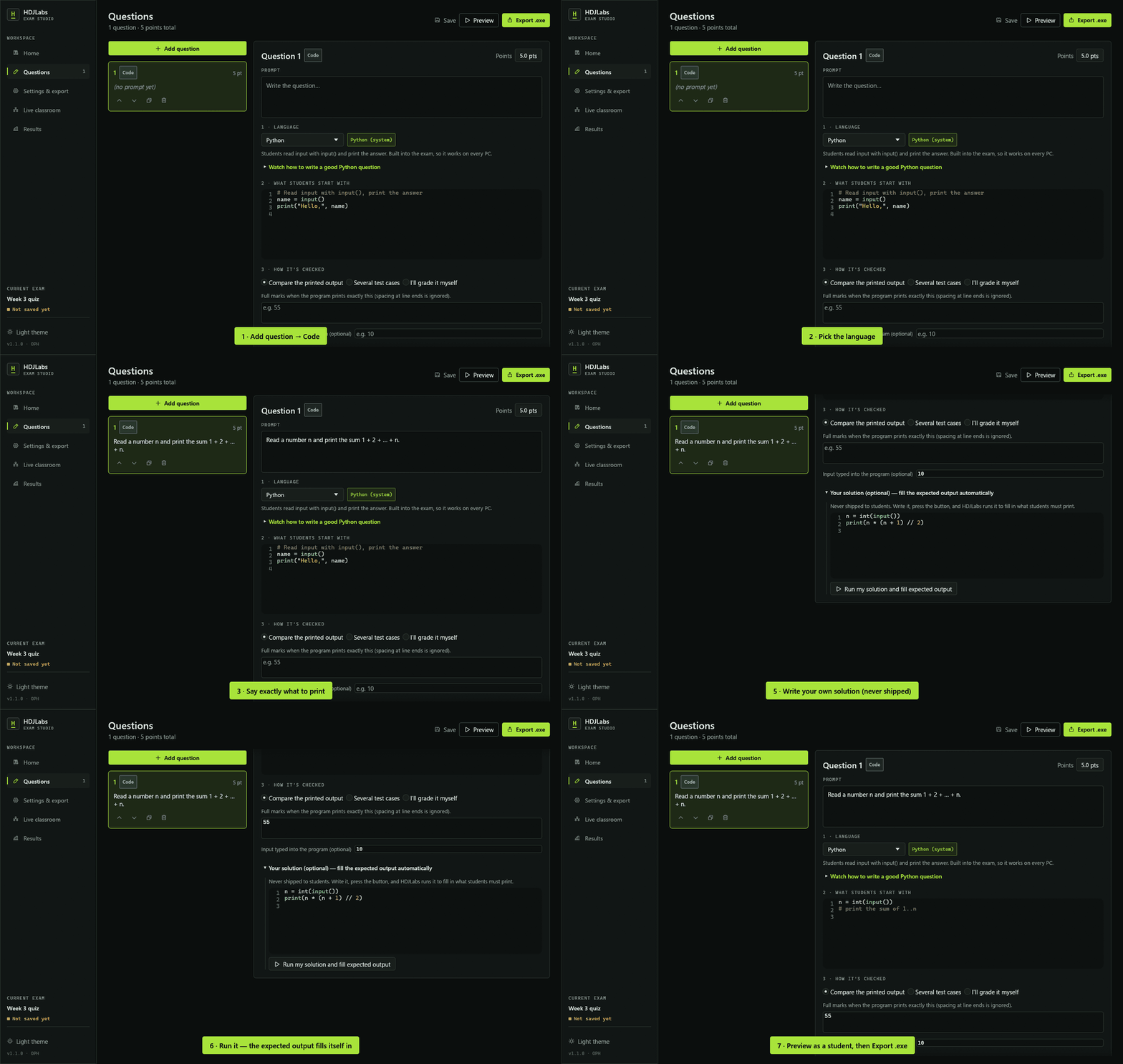
In the Studio, How to write a good question walks you through the real editor, one slide per field, with the field circled in red. The animations below show the same ideas.
The installer needs no admin rights. Exams you export are single portable files — students just run them. If SmartScreen warns on first run, choose More info → Run anyway, or set up the lab once so it never does: see code signing and SmartScreen. Free code signing provided by SignPath.io, certificate by SignPath Foundation (see the code signing policy). See the classroom guide and the security review.
 HDJLabs